Notes & checklists
Capture a thought or make a list with tappable checkboxes. Useful for groceries, errands, plans, and anything you need to remember. Long items wrap onto multiple lines so you can read the whole item.
 Wormwright
Notes, without the interruptions
A simple place for everyday thoughts and things to do. Write a note, make a checklist, and keep going—even when you’re offline.
No ads. No in-app purchases. No app account.
Release 8 · 3.2 MB · Android 8 or later · Secret notes: Android 11+
Updated November 9, 2026 · APK installed directly

Capture a thought or make a list with tappable checkboxes. Useful for groceries, errands, plans, and anything you need to remember. Long items wrap onto multiple lines so you can read the whole item.
Changes save automatically on your phone. Write and check things off without needing an Internet connection.
Search titles and content, pin important notes, and recover notes you’ve moved to Trash.
Actual app screens captured in an Android emulator using fictional sample notes. Select a screenshot to view it full size.
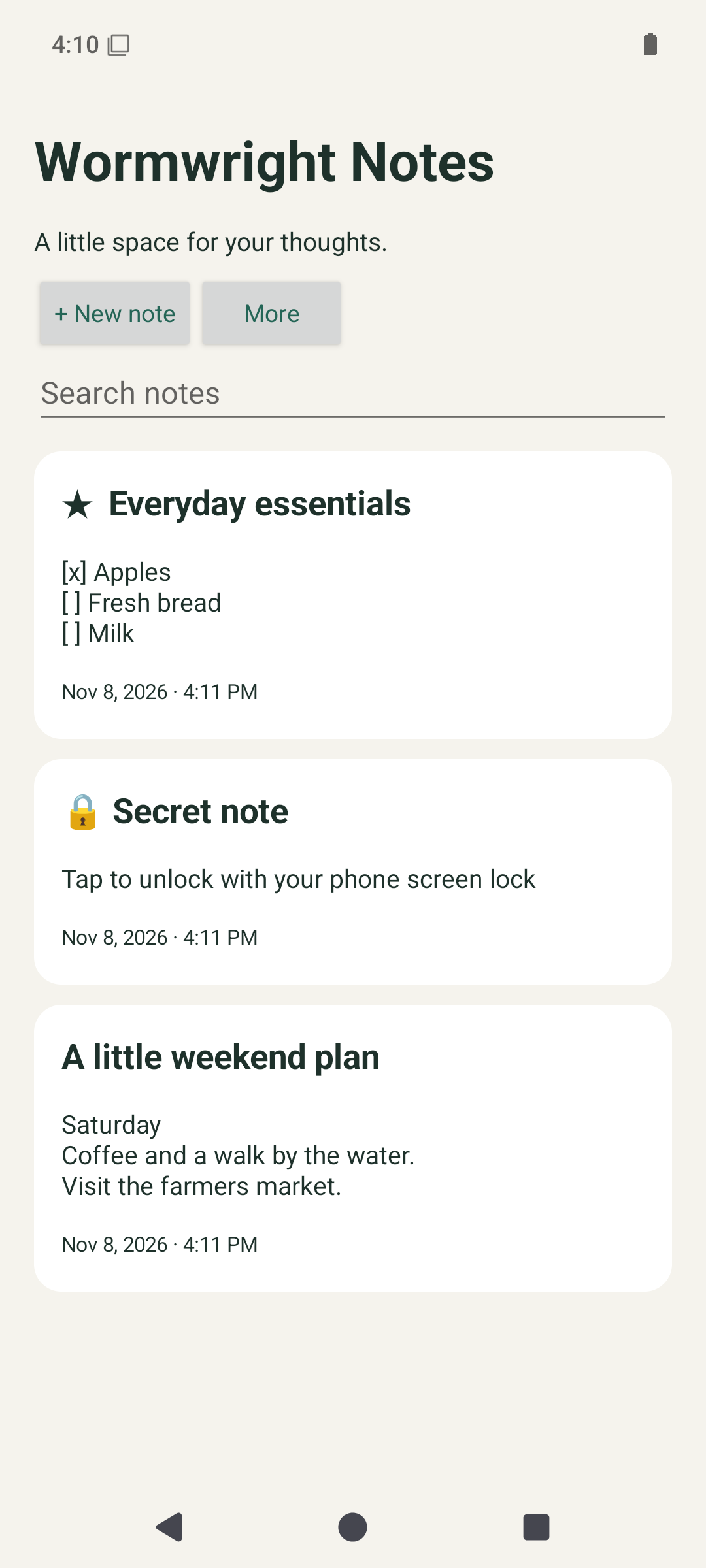
Browse your notes, search for something, or keep an important list pinned at the top.
View full-size screenshot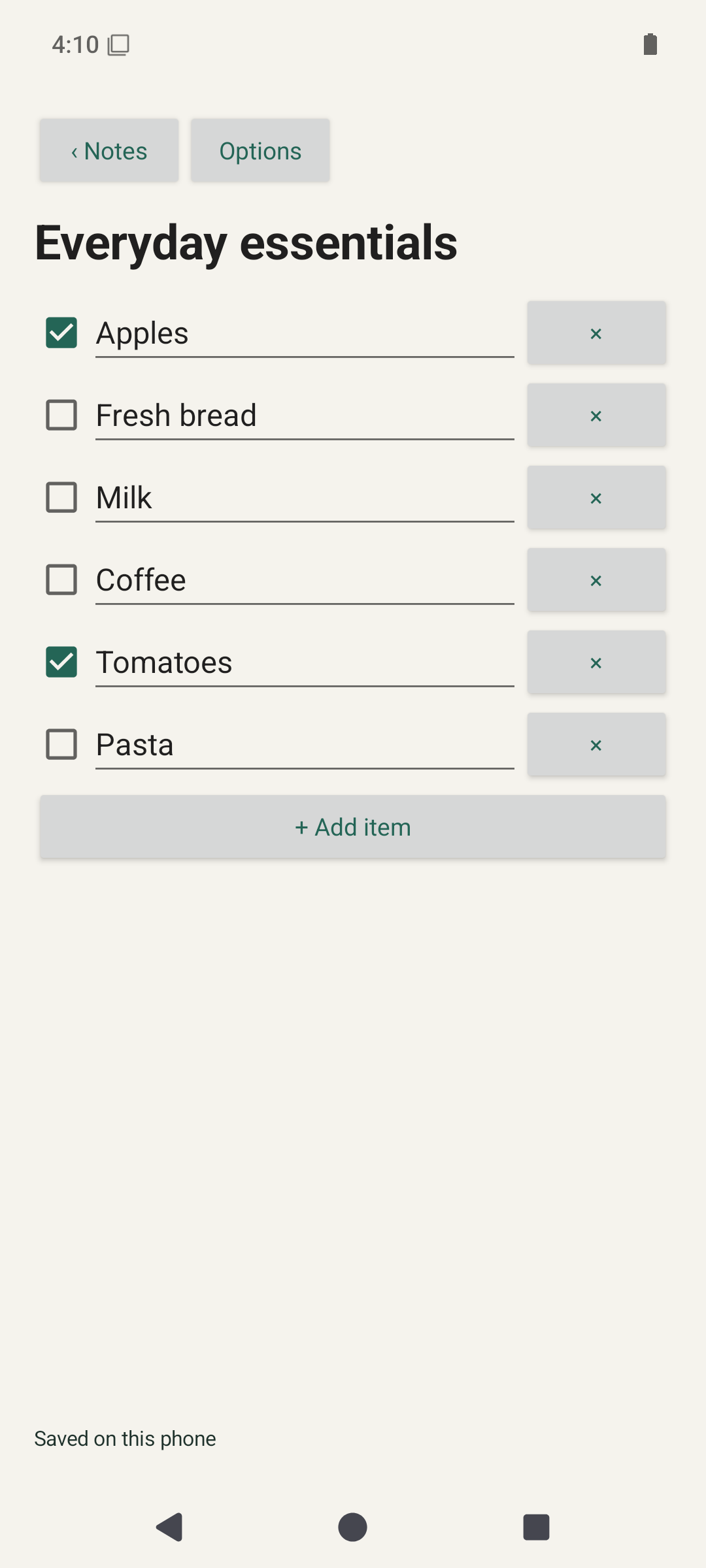
Tap items as you go. Changes save automatically on your phone.
View full-size screenshot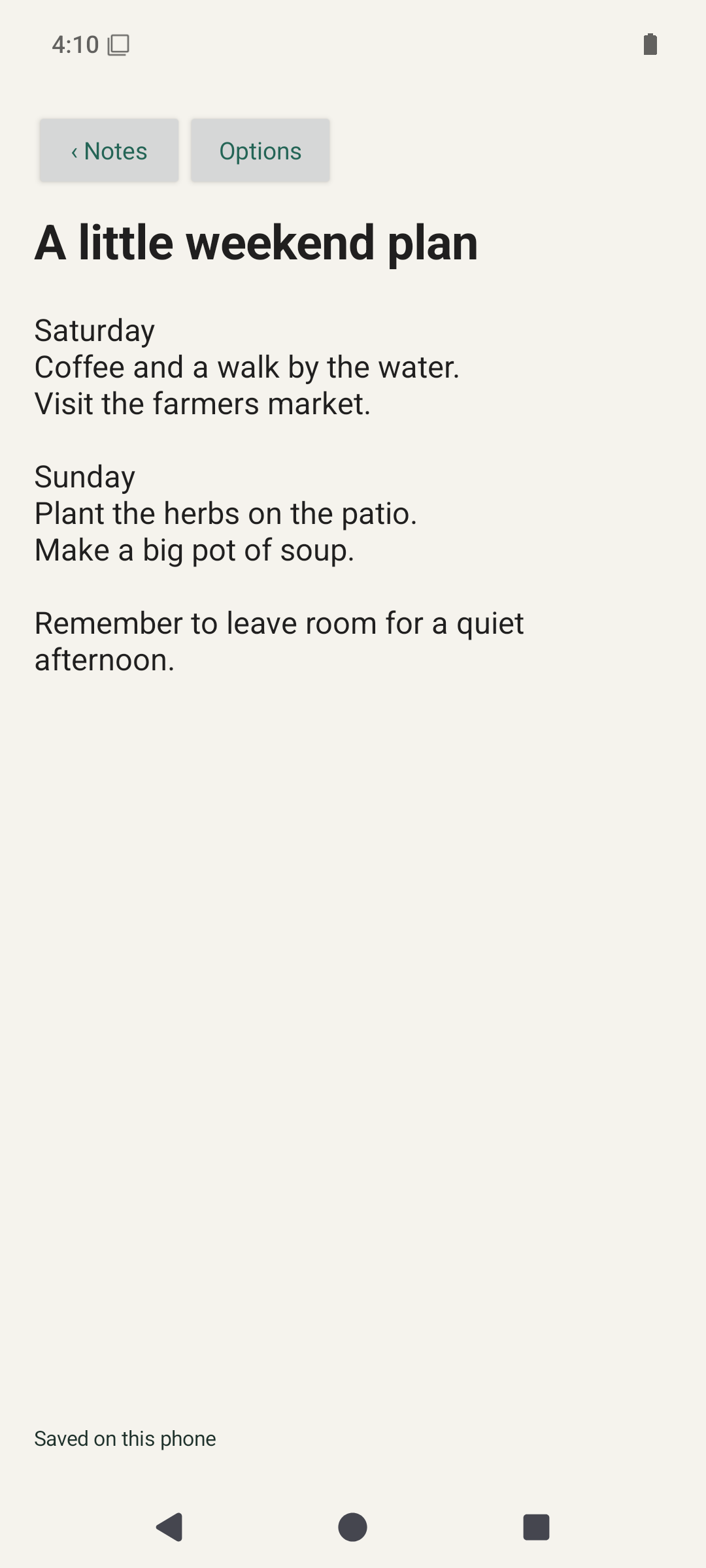
Write a quick reminder or a longer note, even when you’re offline.
View full-size screenshotNew in Release 8: Long checklist items wrap automatically, including in existing lists. Each stays a single checkbox; no re-import is needed.
Introduced in version 7: Import a ChatGPT reply or text from another app. Review it, choose Note or Checklist, and tap Save. Nothing is saved until you confirm.
If ChatGPT shares a conversation link instead, copy the actual reply text and use Paste. Notes imports text, not photos. This creates a new non-secret entry; existing notes are unchanged. You can make the new entry secret afterward in Options.
This sharing workflow needs no new account, server or API key. It does not automatically edit Notes during a live voice conversation.
Already have Notes installed? Back up your notes, then install this APK over the existing app. It uses the same app identity and signing certificate. Do not uninstall it; uninstalling removes the notes stored in the app.
This is a direct APK download, not a Google Play listing. Downloading the file does not install it until you approve the installation on your phone.
Open it and choose Options → Make secret, then confirm with your phone’s PIN, pattern or password. Its title and text are hidden in the notes list, search and Trash. Secret notes require Android 11 or later with a secure screen lock.
Tap a secret note and enter your phone screen lock to read or edit it. Share text works once it is unlocked. Returning to the list or leaving the app locks it again; Options → Lock now locks it immediately. Shared text is readable in the destination app.
Secret contents are encrypted on the phone. To remove the lock, open the secret and choose Options → Make public. Older backups and previously shared copies are not changed when you make a note secret.
Introduced in version 6: NAS settings now say NAS shared folder name and Subfolder path (optional). Enter the shared folder’s name exactly as configured on your NAS, such as share, then the path inside it, such as PasswordVault/Dans-Vault. Existing settings are kept; no nickname field is added.
Use More → Back up all notes to save a backup wherever Android’s file picker allows. Use More → Restore backup to add those notes back. Restoring the same backup again creates duplicates.
For direct SMB NAS backups, open More → NAS settings and enter the NAS address, share, existing folder and login. Then choose More → Save backup to NAS. Each backup gets a new dated filename and is read back for verification. On GrapheneOS, allow Network permission when using the NAS.
NAS backup is manual; it does not automatically sync your notes between devices. It creates separate Notes files and does not open or change Wormwright Vault databases. To restore a NAS snapshot, download it using your file manager and select it with Restore backup.
Choose Password for the existing password-protected format, or YubiKey to include all your registered backup keys. The entire .wwnotes file is encrypted. Password and YubiKey backup/restore do not ask for your phone PIN first; opening an individual secret note still does. Plain JSON is available only when there are no secret notes.
A password backup needs its separate password to restore. A YubiKey backup needs any one of the keys included when it was created, plus that key’s FIDO2 PIN. Your phone PIN cannot replace either recovery method on another phone. Saved NAS credentials are encrypted on your phone and excluded from note backups.
Every newly created YubiKey backup includes all keys currently registered in Notes. Any one of those keys can restore that same file on a replacement phone, without the original phone or its registration file. After restoring, you can remember the authenticated public registrations on the new phone for future backups.
Adding a key does not change older backups; make a new backup afterward. Removing a key affects future backups only. Password and YubiKey are separate backup choices: a key-only file cannot be opened with a password. Try restoring a test backup with each spare key before relying on it.
Notes uses a separate credential and does not change your Vault registrations, key PINs or OTP slots. Keep a USB key connected, or hold an NFC key steadily for each tap until the app asks you to remove it. A configured phone screen lock is required when restoring secret notes; it is requested when you open them.
Hotwave TAB R5 tablet · Android 12: The user reported successful testing of Wormwright Notes, including YubiKey use over USB-C, on November 15, 2026.
Release 8: The user confirmed that longer checklist items wrap correctly and the whole item is readable. This was tested in the same build originally labeled preview 8, now promoted to a regular release.
Earlier hardware checks (version 5): The user confirmed NFC YubiKey registration, creating a YubiKey-protected backup, removing the key registration from the app, and saving a backup to NAS.
The hardware checks confirm backup creation; backup restoration was not part of that confirmation. Removing a key from the app leaves existing backup files unchanged.
The app now shows Release 8 as its Android version and downloads as Wormwright-Notes-Release-8.apk. Install this naming update over your existing app; notes and settings are kept. Historical download links remain available.
Package: ai.wormwright.notes
Version code: 9
SHA-256: b9f1d2d23d67d40213fd8d2745bb7e4155747ea424f8711a23dc0006bc100eb7
Application code is GNU GPLv3 only. Third-party libraries retain their own licenses; Wormwright branding is separate. For help, contact Dan.