Get the ownership update
Use the desktop/NAS Android companion preview.25, together with Mint 0.3.14. Wormwright Pocket is a separate app.
Download companion preview.25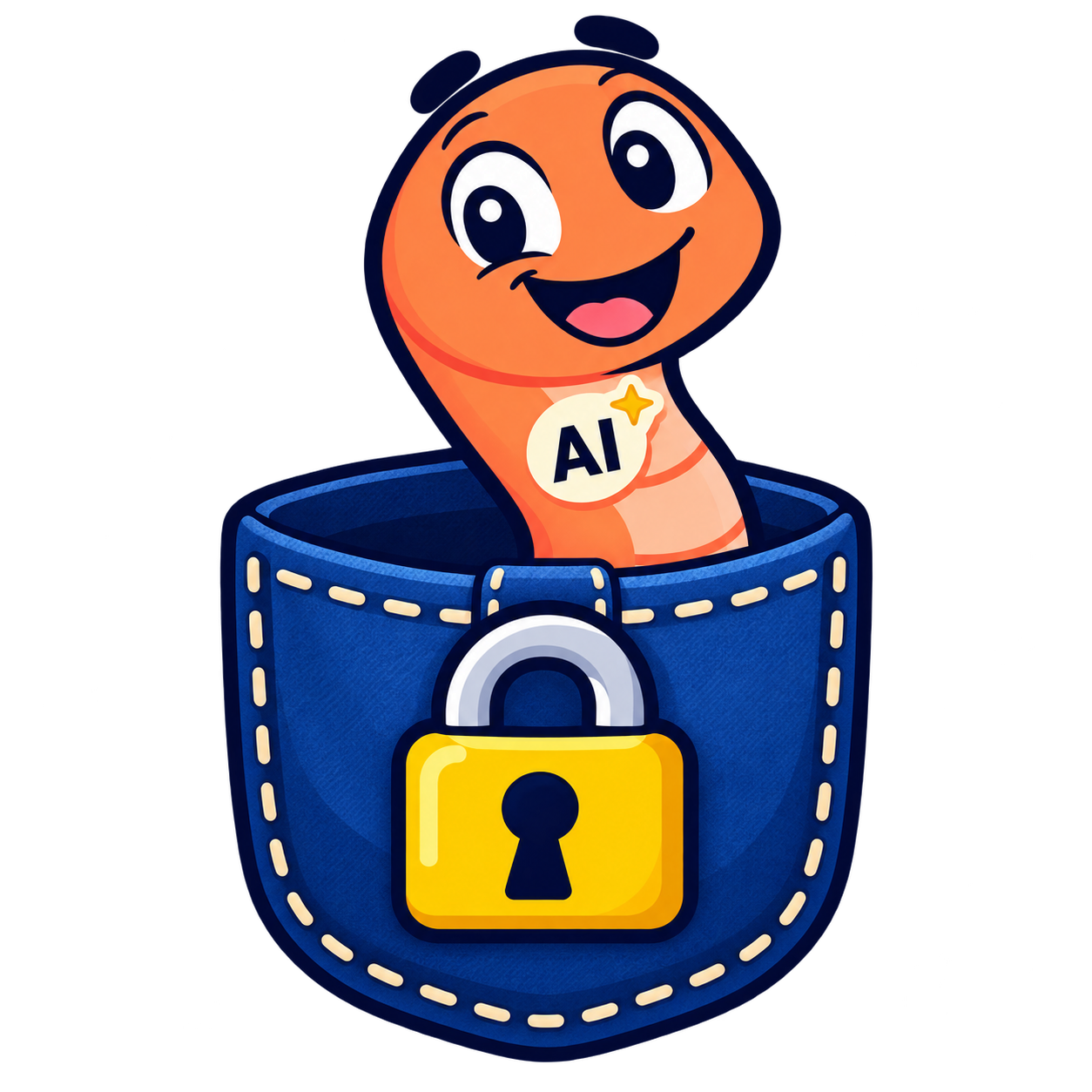
Wormwright Pocket
Your personal password vault
Test build · 0.1.0-test.26 · November 8, 2026
Create an encrypted personal vault entirely on your phone. No desktop computer or NAS is needed. Add, edit, search, view and copy passwords, usernames, links and notes. A separate sample vault contains invented entries.
Download Wormwright Pocket test APKTest build. Repeated YubiKey USB-C and NFC unlock passed user testing in .20 on Pixel 10 with GrapheneOS. Both .21 apps passed user testing on Pixel 10 with GrapheneOS: numeric keypad, letters/symbols toggle, USB-C and NFC authentication (November 7, 2026). Start with invented entries. Automated encryption, recovery and migration checks have passed, along with Android build checks. These results cover the reported YubiKey and keyboard flows on this phone; they do not confirm every feature or NAS migration scenario. This is a manually installed test APK, not a Google Play release.
New in test.26: NAS setup uses clearer labels: NAS shared folder name is the actual shared folder configured on the NAS, such as share. Subfolder path (optional) is a path inside it, such as PasswordVault/Dans-Vault. Saved settings are kept and no nickname field is added.
Watch the Wormwright Pocket tutorial
A narrated guide to your independent phone vault: creating a vault, phone authentication, optional passwords, copying and editing entries, restoring deleted entries, portable backups and recovery. Uses fictional sample data and process illustrations. Pocket keeps its own vault without NAS sync; the Companion tutorial below covers shared desktop and NAS vaults.
Install Wormwright Pocket
Already installed Pocket Vault or Wormwright Pocket? Export a portable encrypted backup first, then install this update over the existing app. This update uses the same package and test signing key. Do not uninstall it.
- Download on your phone. Use the Wormwright Pocket button above. Android 11 or newer is required. Google Play services, Developer options and USB debugging are not required.
- Open the APK. Allow installation from your browser or file app when Android asks, then install. You can turn that installation permission off afterward.
- Open Wormwright Pocket. Look for Wormwright peeking out of a blue pocket with a gold lock. Its package is
ai.wormwright.vault.standalone. It installs alongside the existing Wormwright Vault Preview companion; keep that app installed. - Create a personal vault. Set a secure phone PIN, pattern or password first. Leave the optional separate vault-password fields blank for everyday access using strong biometrics or your phone's screen-lock credential. Confirm authentication within Vault.
- Try invented entries and make a backup. Follow the device-test checklist. Do not import or change your existing companion's personal vault to test this app.
Protection and recovery
Phone authentication unlocks a device-bound encryption key through Android Keystore. Unlocking the phone alone does not open Vault. Leaving the app or two minutes of inactivity locks it. Copied values clear after 30 seconds or locking, and screenshots are blocked. An optional separate vault password adds cryptographic protection. Wormwright Pocket uses Android network permission only for optional manual NAS backups. NAS login settings are encrypted on this phone. It has no analytics, advertising, cloud service or generative AI feature.
Back up to your NAS. Enter an existing SMB share and optional backup folder under More → NAS backup settings, then choose Save backup to NAS. Use Wi-Fi with access to your NAS and an account with read, write and rename permissions. To restore, copy your chosen backup to the phone and use Restore portable encrypted backup with its backup secret. Forget settings removes the saved NAS login; existing backups remain.
Export a portable encrypted backup. Choose a separate backup password or generate a recovery key, record it, and keep it separately from the exported file. On a replacement phone, use Restore portable encrypted backup with that secret. Your phone PIN cannot restore a backup on another device. Losing the phone and every usable backup secret makes recovery impossible. Exported backups remain until you delete them yourself; uninstalling Wormwright Pocket removes its private vault and keys but leaves exported documents.
Move to desktop and NAS later
Choose Export for desktop and NAS, set and confirm a master password, and transfer the encrypted file to your computer. Open it with that password, configure the desktop's SMB NAS sync, then import a copy in the existing Android companion and complete its first NAS pairing. Use Owner when a vault account name is requested. Your standalone phone vault stays intact and independent.
The export preserves entry fields and recoverable deleted entries in the existing signed format-2 vault. That format has no per-entry edit history. See the complete backup, installation and migration instructions and testing and release handoff.
Download checksums · Download matching GPLv3 source · Test release notes
APK SHA-256: c6259952d00111e36932cf36b5dcf0cd99f12d85c636b7b4514e1de2ecb8c51c
This build uses a dedicated test signing key. Future updates must use that key to install over it. Moving to a production signing identity may require an encrypted backup, uninstall and restore. Support: danvanwormer@pm.me.
Wormwright Vault Preview — desktop and NAS companion
Watch the Android Companion tutorial
A 5-minute narrated guide to importing your vault, connecting to your NAS, copying and editing entries, working offline, resolving conflicts and keeping encrypted backups. Uses fictional sample data and clearly labeled process illustrations. This tutorial covers the desktop/NAS Companion; Wormwright Pocket has different controls and does not use NAS sync.
Android companion preview: 0.1.0-preview.25
Download Android NAS companion · 0.1.0-preview.25New in preview.25: The sign-in screen clearly asks for your account name when Users & Groups are enabled. Enter it before unlocking with either your password or YubiKey; either button will remind you if it is blank. Personal vaults can leave it blank. Try the second, fictional family permissions demo from the sign-in screen. Switch demo users, reset the practice copy, and read the family guide from More. Practice changes stay separate from your phone vaults and NAS. User and group management remains desktop-only. Users can create private entries and edit entries they own, while entries shared by other owners remain view-only. Every entry a user creates becomes owned by them. The desktop Manager can view/edit everything and transfer ownership; Android follows those permissions after syncing.
Install this update over the existing companion; do not uninstall it. This APK keeps the existing app identity and signing key. After installing, About should show 0.1.0-preview.25. Install Mint 0.3.14 too before enabling owned-entry editing. Older clients reject ownership-enabled vaults. Restricted users’ new entries default to private; leave group boxes unchecked for owner and Manager access only. The successful Hotwave TAB R5 / Android 12 report is recorded under Tested devices; the report did not specify an APK version.
— download requests through this website · counted from October 9, 2026
See Vault on Android
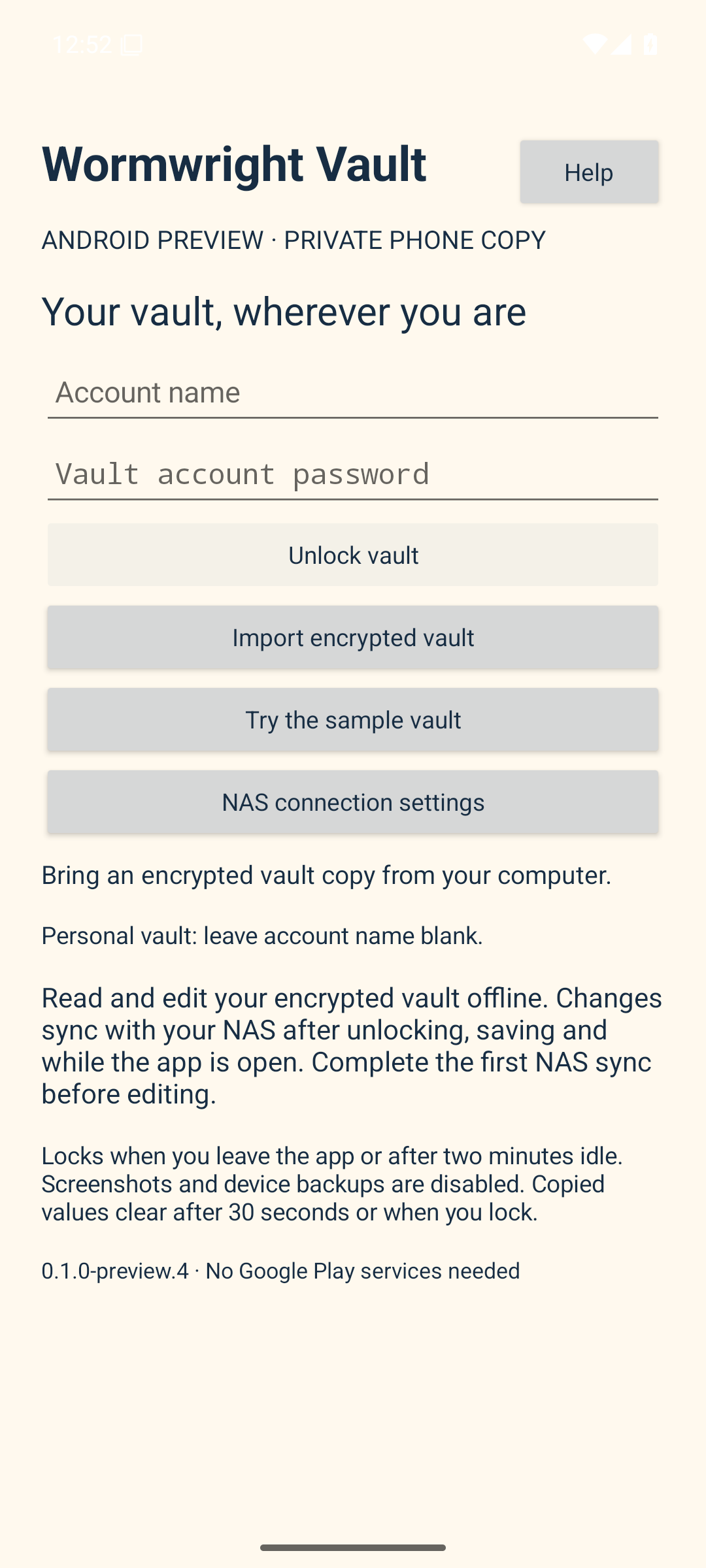
Captured from the actual Android preview running in an Android emulator. The sample vault contains fictional entries; passwords remain hidden. The entry-details image is a close-up of the dialog.
Open your encrypted vault
Preview 4 puts login controls before welcome notes and adds the Help menu. Import an encrypted vault or try the built-in sample.
View full-size screenshot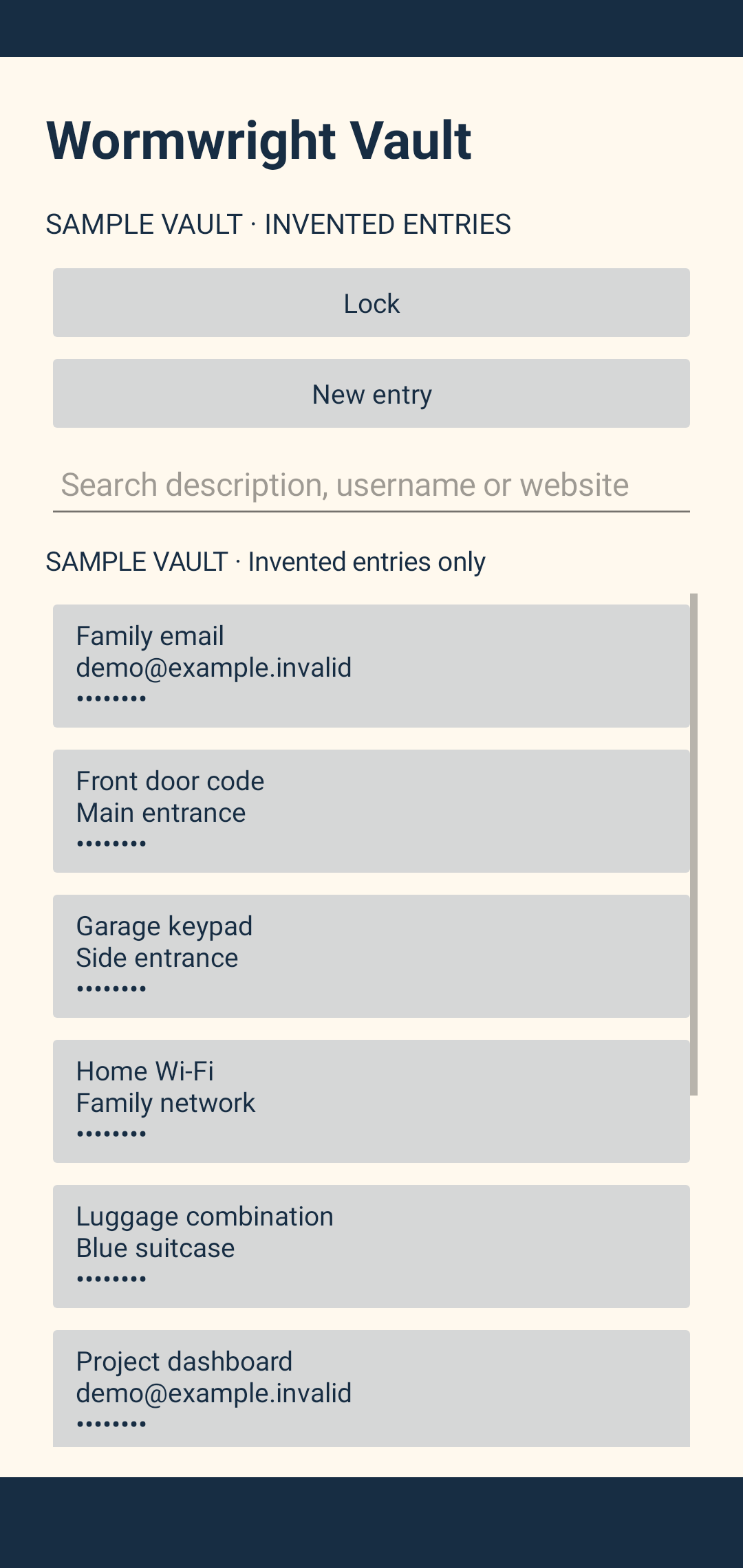
Your passwords on your phone
Browse a fuller sample vault, search entries and access your saved passwords and codes.
View full-size screenshot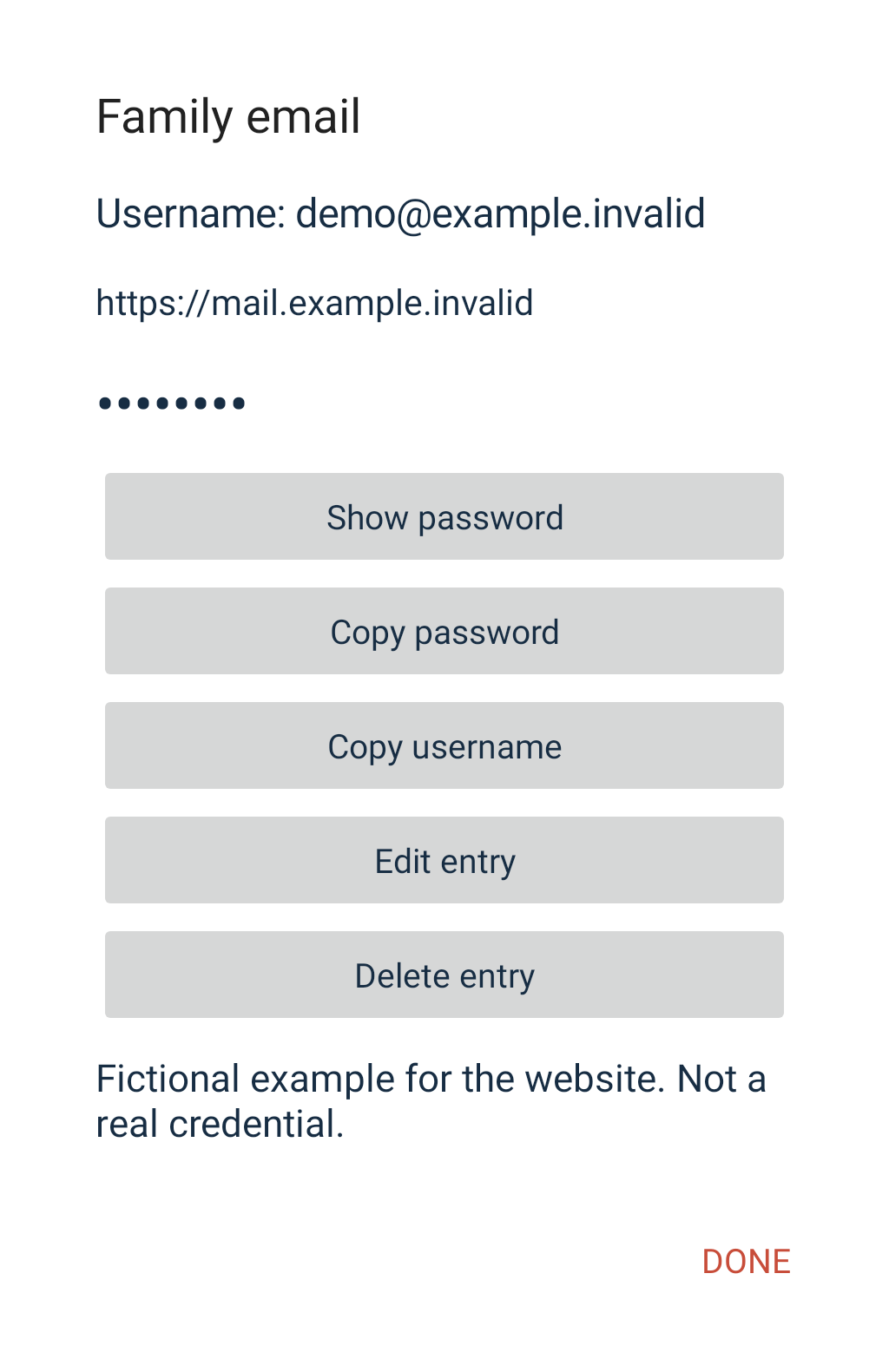
Entry details
Open an entry to see its details and use the available password controls.
View full-size screenshotTested devices
- Hotwave TAB R5 tablet · Android 12: The user reported successful testing of the Wormwright Android NAS Companion, including YubiKey use over USB-C, on November 15, 2026.
- Pixel 10 · GrapheneOS: Previously reported user testing covers the phone and YubiKey flows described on this page.
The app targets Android 11 or newer. Google Play services, Developer options and USB debugging are not required. This is a manually installed APK, not a Play Store release.
Install and set up the Android preview
The preview keeps an encrypted vault copy on your phone. It can search descriptions, usernames and websites, show or copy passwords, create and edit entries, and sync additions and deletions through your SMB NAS. The Linux and Windows desktop versions also search usernames.
- Download and install. Open this page on your phone and use the Android download button. Open the downloaded APK and allow installation from that browser or file app when Android asks. You may turn that installation permission off afterward. Future updates should be installed over the existing app to preserve its phone copy and saved settings.
- Bring an encrypted vault copy. On Linux or Windows, use Back Up Vault, or the Manager’s Export Database to create a consistent encrypted format-2 database. Transfer that encrypted file to your phone, open Wormwright Vault and choose Import encrypted vault. Avoid CSV export for this transfer because CSV contains unencrypted secrets.
- Unlock on the phone. Use the same vault account and password as on Linux or Windows. For a personal vault, leave the account name blank. You enter your vault password only in the app.
- Connect your NAS. Open NAS connection settings. Enter the NAS address, share name and folder within the share, plus the NAS login. For example,
smb://nas-address/share/PasswordVault/My-Vaultbecomes addressnas-address, shareshare, folderPasswordVault/My-Vault. The shared master iswormwright-vault.sqlite. NAS credentials can differ from the vault password. The NAS account must be able to read and write the vault folder, sync lock and backups. - Allow network access. On GrapheneOS, enable the app’s Network permission. For the first connection, keep the phone on the same network as the NAS. On Linux, mount the shared folder before desktop sync; on Windows, use a mapped SMB drive or a UNC shared folder.
- Complete the first sync. Unlock and tap Sync now. The phone authenticates the NAS vault and pairs with it before editing is enabled. Create a dummy entry, sync it and confirm it appears in your Linux or Windows desktop app. You can also delete it and confirm it appears as deleted in the Manager view.
Using the phone day to day
Changes save locally before syncing. Sync runs after unlocking, after saving, on demand, and about once a minute while the unlocked app is open. If the NAS is unavailable, keep working offline and retry later. Leaving the app or two minutes of inactivity locks it. Copied values clear after 30 seconds or locking, provided another app has not replaced the clipboard.
Independent entry changes merge. If the same entry changes differently on two devices, choose the phone or NAS version. Changes to accounts or groups alongside phone edits may require Manager review on Linux or Windows; use More → Export encrypted phone backup to preserve a review copy. Encrypted backups are retained during sync. “Another device is syncing” can appear briefly while another device holds the shared lock; wait for it to finish and retry.
Preview limits: sync does not run while the Android app is closed or locked. Android autofill and Manager account administration are not included. Repeated YubiKey USB-C and NFC unlock passed user testing in preview.20 on Pixel 10 with GrapheneOS. Preview.21 also passed user testing on that phone for the numeric keypad, letters/symbols toggle, USB-C and NFC (November 7, 2026). Phone additions and deletions have been tested through the NAS on Pixel 10 with GrapheneOS. Offline editing and conflict resolution have also been tested on that phone, choosing both NAS and phone versions. Successful Companion use, including YubiKey over USB-C, has also been reported on the Hotwave TAB R5 tablet with Android 12 (November 15, 2026).
Companion preview.25 release notes · Matching companion GPLv3 source · Companion download checksums
Support and source code
Report a bug using the GitHub form (account required). Include your app version, operating system, steps and error message. Reports are public: never attach real vaults, passwords, recovery codes, YubiKey PINs or NAS credentials. Remove private details from screenshots.
For a suspected security vulnerability, submit a private security report.
Vault’s application code is open source under GNU GPLv3. You may use, modify and redistribute it under that license. Browse the source code. Third-party components retain their licenses; music, branding and other Wormwright projects are separately covered.
YubiKey unlock previews
Both Android builds support native NFC and USB-C unlock with up to four named keys. Network Vault keys are enrolled on the desktop and then synchronized or imported. Pocket manages its own keys. Update all clients before adding extra keys. Repeated USB-C and NFC unlock passed user testing in both .20 apps on Pixel 10 with GrapheneOS, including clearer wrong-PIN alerts. Both .21 apps passed automated Android-widget checks and user testing on Pixel 10 with GrapheneOS for the numeric keypad, letters/symbols toggle, USB-C and NFC (November 7, 2026). The user also confirmed YubiKey use over USB-C with both Wormwright Notes and the NAS Companion on the Hotwave TAB R5 tablet with Android 12 (November 15, 2026). The earlier NFC and keypad results above were reported on the Pixel 10 with GrapheneOS. Keep normal unlock and encrypted backups available.
Updated installation and YubiKey instructions · Matching source code