

New in Windows 0.3.14: Shared view-only permissions, editable owned entries and Manager ownership transfer now match the owner-tested Mint release. Drag column dividers to resize, or double-click to fit; hover over links for their full address. Includes the second family permissions demo and its searchable Help guide. An unlocked vault Manager can rename groups through Manage → Users & Groups → Rename Group, preserving membership, entries and permissions. Manage appears only for the actual vault Manager account.
Retained: New vaults require a name. Vault → Vaults… lists names, file locations and the current selection. An unlocked Manager can use Rename Current Vault… to name existing vaults. Delete Current Local Vault… identifies the chosen vault and retains fresh authorization, typing DELETE and Cancel. Other local vaults remain.
Windows stable release: 0.3.14
Download Windows installer · stable 0.3.14— download requests through this website · counted from October 9, 2026
What is available
A stable Windows 10/11 x64 installer with Vault and optional Manager, plus a matching portable ZIP. This version brings the confirmed Mint 0.3.14 desktop changes to Windows. Automated checks cover permissions, ownership, group renaming, the family demo, bundled-app startup, installer, upgrade and uninstall with user-data preservation. Existing YubiKey matching and two-step enrollment guidance are retained. Physical Windows confirmation of this version remains with the owner. The installer is unsigned and installs for your Windows account without requiring administrator access.
Delete a vault or its backups
Also included: Vault → Delete Current Local Vault removes the working copy and its local sync settings. Vault → Delete Shared NAS Vault separately removes the configured NAS master; disconnect every other device from sync first so it cannot recreate that copy. Import / Export / Backup → Delete Vault Backups lists matching backups from local and configured NAS folders. Select individual files or all listed backups, and add backups from other folders.
These actions require an unlocked Manager account, fresh password or YubiKey authorization, exact-file review and typing DELETE. Remove backups before deleting your last accessible working vault. Other devices, unselected files and external snapshots remain. File deletion cannot guarantee forensic erasure from storage.
See Vault on Windows
Captured from the actual Windows app running on Windows. All entries and accounts are fictional examples; passwords remain hidden.
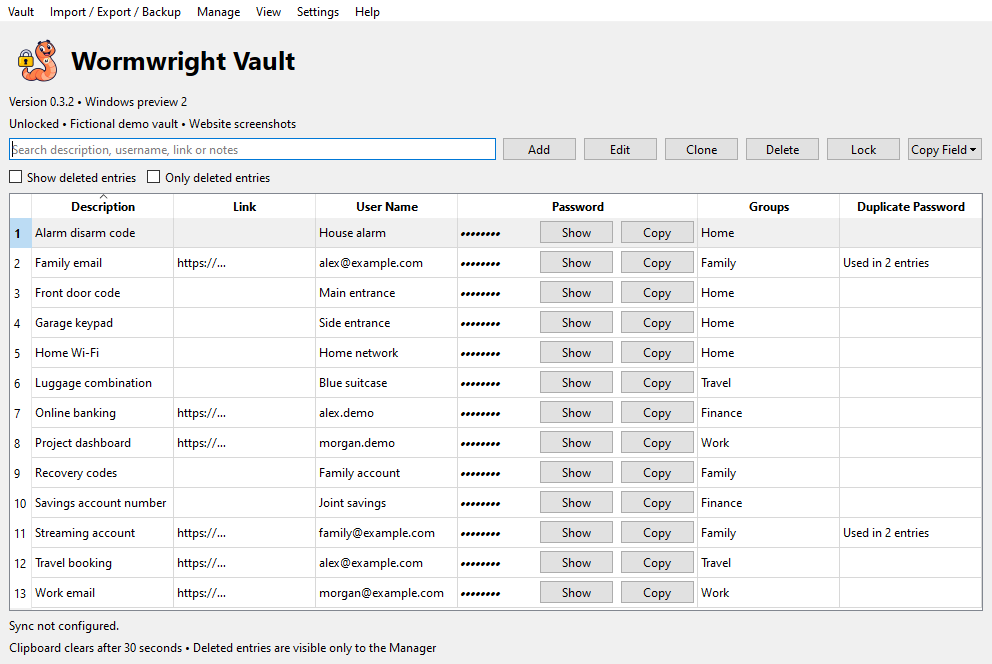
Your everyday vault
Browse saved entries, search the vault and filter by group.
View full-size screenshot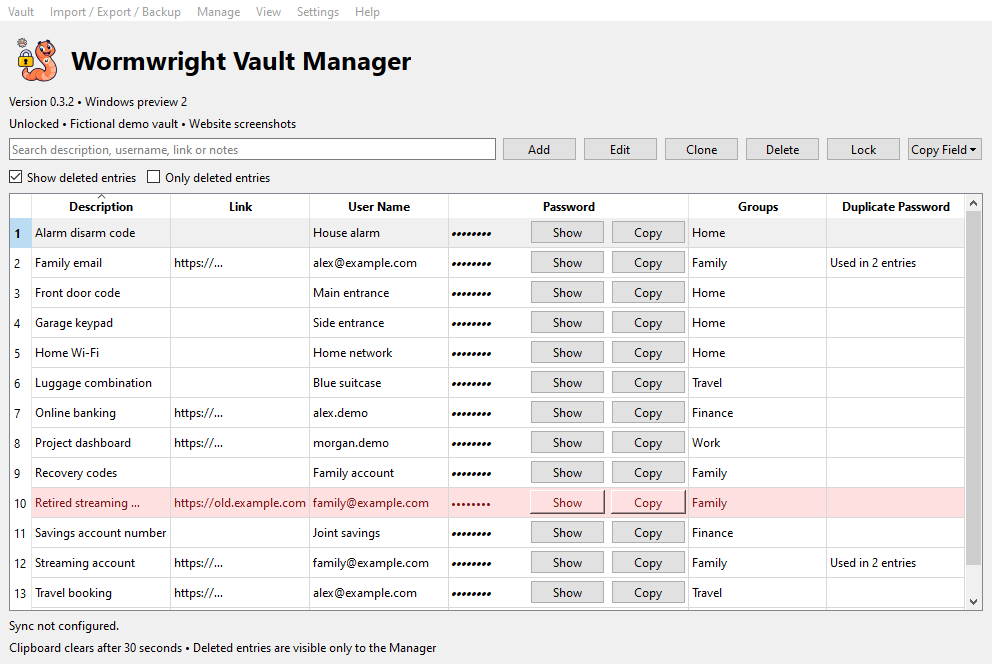
Shared vault administration
Manager brings account administration and shared vault controls to Windows.
View full-size screenshot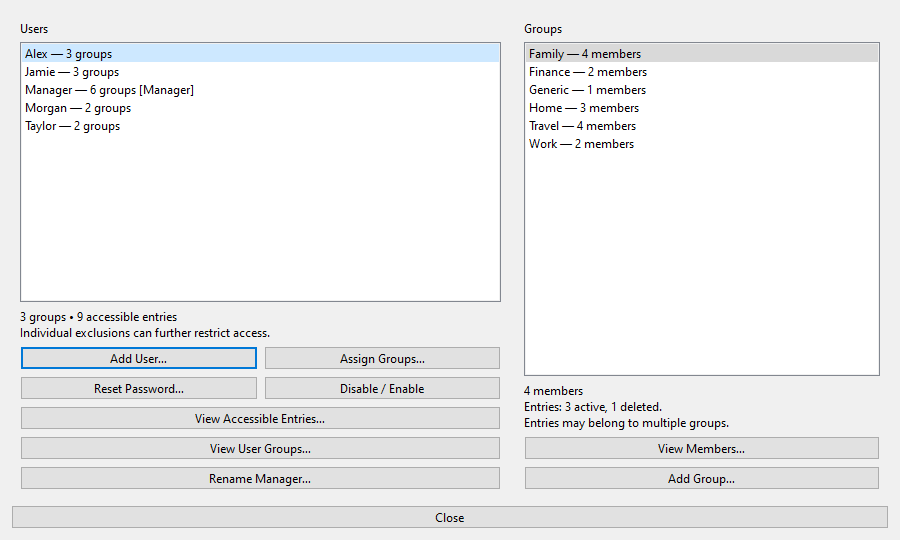
Organize by group
Use groups to organize entries and manage access in a shared vault.
View full-size screenshotUpdates
In Vault or Vault Manager, use Help → Check for Updates. Help → Update Settings lets you select Stable or Preview and enable optional daily checks while the app runs. Select Stable for released Windows updates. If you are moving from a preview, choose Stable, save, then use Check for Updates. Fresh installations default to Stable; existing preferences are preserved. Automatic checks start disabled. Checks send no vault, account or search data. Download Update opens this page. Close both apps and run the newer installer to upgrade while retaining your vaults and settings.
Install or update
- For an existing vault, save an encrypted backup and fully exit Vault and Manager before updating.
- Download and run the
_setup.exeinstaller above. Follow the setup steps; a desktop shortcut is optional. No Python installation is required. - Open Wormwright Vault or Wormwright Vault Manager from the Windows Start menu.
- Open your existing local vault, or use the in-app guide to create one. The app remembers your previous vault and its saved sync settings when you restart.
Setup installs app files in your account’s local Programs folder. Updating or uninstalling keeps saved app settings and your separately stored vault files. If you used the portable ZIP previously, fully close that copy and use the new Start menu shortcut.
Prefer the portable version? Download the portable ZIP; extract all files together, then open WormwrightVault.exe.
— portable ZIP download requests through this website · counted from October 9, 2026

Vault Manager on Windows
The Windows release includes the optional Vault Manager, alongside the everyday Vault view. As on Linux, Manager provides account administration, groups, individual exclusions and recovery controls for shared vaults. Open Wormwright Vault Manager from the Start menu. The portable ZIP also includes Open Manager.cmd. Your signed-in account determines administrative access; opening Manager does not grant extra permissions.
Adding a YubiKey on Windows
- Step 1 of 2: Create key credential. Choose Security key, enter the YubiKey PIN and touch the key when Windows asks.
- Step 2 of 2: Verify key and finish enrollment. Keep the same key connected. Choose Security key again if asked, enter the same PIN and touch it again. This obtains the vault-unlock secret and verifies the credential; it does not add a second enrollment.
The app explains each step before opening the Windows prompt. Enrollment is complete only after step 2 succeeds. Normal YubiKey unlock remains a single authentication operation.
YubiKey unlock
Use your existing key enrolled with the vault. Windows shows its native security-key prompt: enter the key PIN and touch the key when prompted. Existing enrolled keys do not need to be reset or registered again just for Windows. Password unlock remains available.
Configure NAS sync
Use SMB for NAS sync. Select a mapped SMB drive or UNC shared folder such as \\NAS-NAME\share\PasswordVault\My-Vault in NAS settings. Keep a separate local working copy and select the same dedicated shared vault folder used by your other devices. FTP-mounted shares have shown intermittent sync and incorrect lock failures on Linux; SMB is the recommended connection method.
Windows preserves the existing Linux and Android vault formats and NAS reconciliation rules; no vault-format migration is required. Use Android companion preview.25 for current ownership enforcement and clearer account-name login guidance. Update all clients before enabling owned-entry permissions; older clients reject ownership-enabled vaults. Desktop apps may continue automatic sync while locked.
Release notes and testing
This release includes the current desktop multiple-key and automatic-matching changes alongside the existing NAS-lock cleanup improvements. It never automatically removes another device’s lock. The intermittent lock issue still needs longer-term testing with SMB. Read the release notes, download checksums and corresponding source.
Support and source code
Report a bug using the GitHub form (account required). Include your app version, operating system, steps and error message. Reports are public: never attach real vaults, passwords, recovery codes, YubiKey PINs or NAS credentials. Remove private details from screenshots.
For a suspected security vulnerability, submit a private security report.
Vault’s application code is open source under GNU GPLv3. You may use, modify and redistribute it under that license. Browse the source code. Third-party components retain their licenses; music, branding and other Wormwright projects are separately covered.