
New in 0.3.14: Drag column dividers to resize, or double-click to fit. Widths are remembered on this computer. Long links stay on one line with full-address tooltips. Includes a second family permissions demo, its complete searchable Help guide, and Manager-only group renaming. Unlock as the vault Manager to see Manage → Users & Groups → Rename Group. Renaming preserves members, entries and permissions.
Owned entries and shared view-only access · Mint 0.3.14
Every new entry belongs to its creator. Users can edit their own private entries while shared entries from other owners remain view-only. The Manager can view and edit everything and use Manage → Change Selected Entry Owner… to transfer ownership.
Already using the Wormwright repository? Open Update Manager, choose Refresh, then install Wormwright Vault 0.3.14.
Download Linux Mint 0.3.14Update both apps first. Install Android companion preview.25 too. Existing vaults can use Manage → Enable Owned-Entry Editing; new vaults enable it automatically. Older clients reject ownership-enabled vaults. Restricted users’ new entries default to private, with access only for the owner and Manager.
New in 0.3.11: Unlock automatically matches your connected YubiKey to an enrollment for this vault account. Enter its PIN and touch the key when prompted; no key-name selection is needed. Manage YubiKeys now asks Which key are you managing? Existing keys remain enrolled.
Retained: New vaults require a name. Vault → Vaults… lists names, file locations and the current selection. An unlocked Manager can use Rename Current Vault… to name existing vaults. Delete Current Local Vault… identifies the chosen vault and retains fresh authorization, typing DELETE and Cancel. Other local vaults remain.
Get Wormwright Vault
Add the Wormwright repository, then install Vault and Vault Manager through Software Manager. Future stable releases arrive through Update Manager.
Download repository setupHow to install · Alternative downloads
Current stable release: 0.3.14. The setup package adds the software source; install Vault separately afterward.
Actual Linux app, version 0.3.0, with fictional demo entries. Passwords stay hidden.
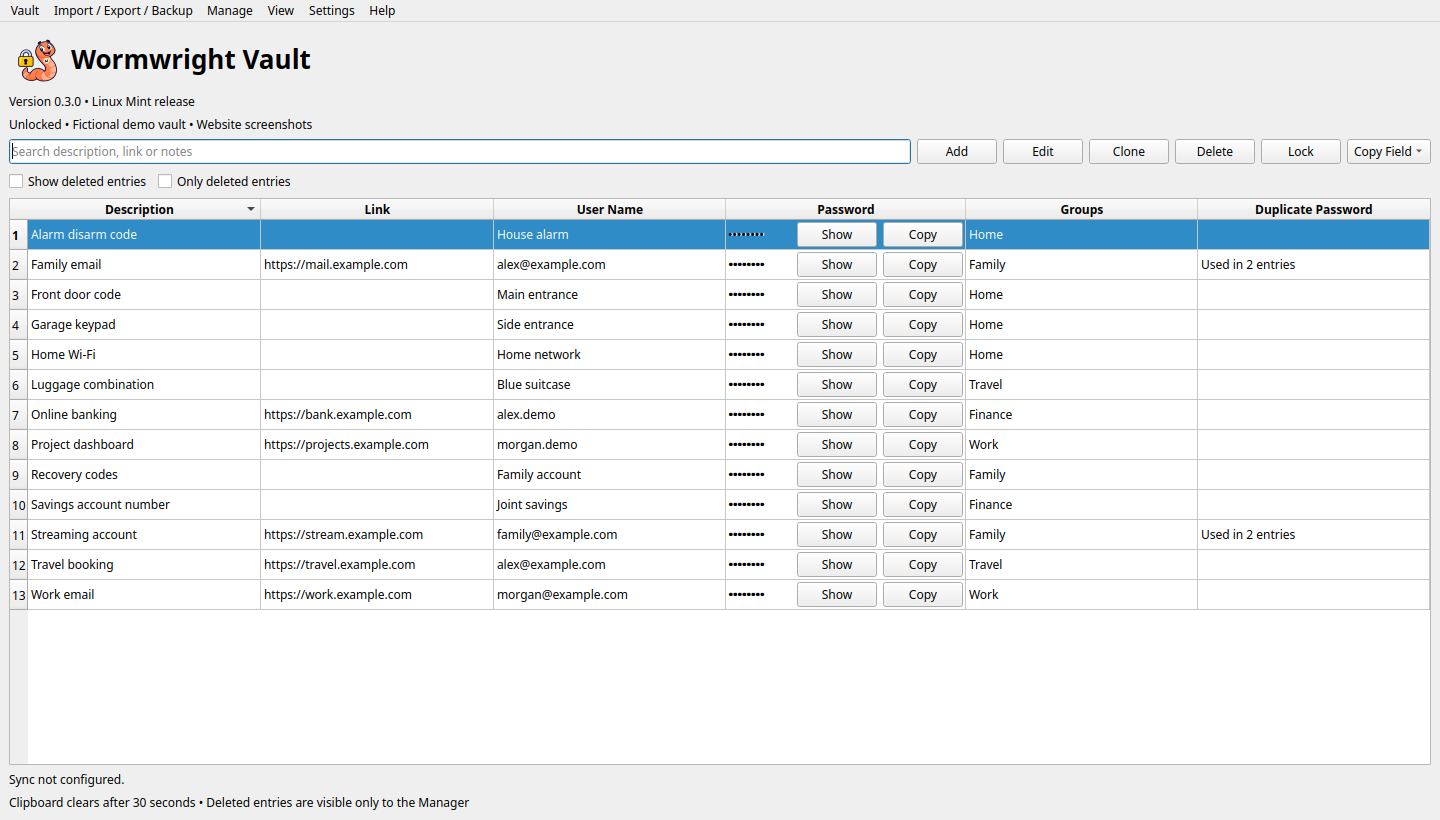
Everyday Vault view
Browse 13 active demo entries, including online accounts, home access codes and recovery codes. Passwords stay masked; duplicate-password indicators flag reused values.
View full-size screenshotYour vault, on your own devices
Keep passwords, access codes and recovery information in an encrypted local vault. Work offline, synchronize through your own shared folder, and use optional Manager controls to share selected entries with family or a small team.
Fedora 44 · stable
Wormwright Vault 0.3.14 · stable RPM revision 3. For Intel/AMD 64-bit Fedora Workstation or KDE computers. Includes Vault, Vault Manager, up to four named YubiKeys per vault account, automatic key matching, the narrated tutorial and friendly NAS selection. Existing keys remain enrolled. Opening a managed NAS master creates a linked local working copy and preserves its connection after restart.
New in 0.3.14: Shared view-only access, editable owned entries and Manager ownership transfer match the confirmed Mint release. Includes resizable columns, full-link tooltips, the second family demo and its complete searchable Help. Sign in as the actual vault Manager to see Manage → Users & Groups → Rename Group; renaming preserves access rules.
Retained startup fix: Fixes “AF_UNIX path too long,” which could prevent Vault and Manager from opening. The local control connection now uses a short private path. Stable revision 3 upgrades earlier revisions in place; vaults and YubiKey enrollments stay intact.
Download Fedora stable · RPMInstallation guide, checksums, source and release notes
Close Vault and Manager before installing. Open the downloaded RPM with your software installer, or run this from the download folder:
sudo dnf install ./wormwright-vault-0.3.14-3.fc44.x86_64.rpmOpen Wormwright Vault or Wormwright Vault Manager from the applications menu. Connect the NAS in Files, then select it in Vault. Use disposable demo data for initial testing. Installing over an older RPM preserves vaults and settings.
Compatibility and verification: This is an unsigned Wormwright RPM, not a package from Fedora’s official repositories. Check the release’s SHA256SUMS. Portable regression and multiple-key checks passed. Fedora 44 container checks cover RPM installation, both Vault and Manager with long vault paths, offscreen and X11 display startup, reinstall and removal. Earlier Fedora releases passed owner YubiKey testing in Fedora 44 under system GNOME Boxes. This version brings the confirmed Mint desktop changes; physical Fedora confirmation of this version remains with the owner. Other physical hardware, desktop environments and NAS scenarios have not been comprehensively tested. ARM and Atomic desktops are not validated.
Fedora updates currently require downloading a newer RPM and installing it over the old one. The Mint APT repository below applies only to Linux Mint. If the graphical installer hangs or reports a transaction error, close it and use DNF. Read the Fedora setup and troubleshooting guide.
Alternative downloads
Current stable installer · 0.3.14
Install the app directly without adding a software repository. Download newer installers manually.
Download Linux Mint · stable— download requests through this website · counted from October 9, 2026
Direct installation stepsPrevious stable installer · 0.3.2
The earlier stable release, kept for recovery. Use the current stable build for the NAS sync fixes.
Download previous stable · 0.3.2— download requests through this website · counted from October 9, 2026
Previous release notesInstallation and updates
Linux Mint 22.x on Intel/AMD 64-bit computers (amd64), with glibc 2.39 or newer. Cinnamon and XFCE are the intended desktop environments. ARM Linux computers, earlier Mint versions and other distributions have not been verified.
Install through Software Manager
The Wormwright APT repository makes Vault available to Linux Mint 22.x on Intel/AMD 64-bit computers. Add it once, then install Vault through Software Manager. Vault Manager is included, and future stable releases arrive through Update Manager.
- Back up any existing encrypted vault and close Vault and Manager before installing or updating.
- Download the repository setup package above and open it with Mint’s package installer. Approve installation with your administrator password. This adds the Wormwright software source and public signing key; it does not install Vault itself.
- Refresh the package list in Software Sources, then close and reopen Software Manager. Search for Wormwright Vault or
wormwright-vault-mintand install it. - Open Wormwright Vault or Wormwright Vault Manager from the application menu. Use Update Manager for newer stable releases as they are published.
After installing the repository setup package, you can also install from a terminal:
sudo apt update
sudo apt install wormwright-vault-mint
The repository currently provides stable 0.3.14, with freshly authorized vault and backup cleanup and the retained NAS sync fixes. Existing repository users can refresh Update Manager and install the available update. If this exact build is already installed, no reinstall is needed.
Repository instructions, source and signing-key details. Mint 22.x amd64 is the supported target. The signed public repository has passed APT verification; the graphical Software Manager installation path still needs wider testing.
Install or update with a direct download
- For an existing vault, use Import / Export / Backup → Back Up Vault to save an encrypted backup. Close both Vault and Manager before upgrading.
- Download the installer above. Open the downloaded
.debin your package installer and install it. Alternatively, use the terminal command below. - Open Wormwright Vault or Wormwright Vault Manager from the application menu. Existing beta shortcuts remain compatible. Open your existing local vault, or follow the in-app guide to create one.
sudo apt install ~/Downloads/wormwright-vault-mint_0.3.14_amd64.debWhat changed in 0.3.11
Version 0.3.11 automatically matches the connected YubiKey during unlock and hardware authorization. Existing credentials, raw unlock salts and encrypted entries are retained. Names remain available when selecting an enrollment to rename or remove; the prompt now says Which key are you managing? Wrong-PIN attempts stop without automatic retries. Back up your encrypted vault and close Vault and Manager before updating.
This stable build retains the fix for an “Operation not supported” upload error on SMB/GVFS mounts by avoiding an unsupported read/write reopen and verifying uploaded bytes before replacement. It also retains the lock-cleanup improvements. Continue to report any NAS sync issues; this promotion does not claim that every possible NAS-lock problem is resolved.
Back up your encrypted vault and fully exit Vault and Manager before installing. A locked desktop app can still sync in the background. Read the release notes and changes.
Delete a vault or its backups
Retained: Vault → Delete Current Local Vault removes the working copy and its local sync settings. Vault → Delete Shared NAS Vault separately removes the configured NAS master; disconnect every other device from sync first so it cannot recreate that copy. Import / Export / Backup → Delete Vault Backups lists matching backups from local and configured NAS folders. Select individual files or all listed backups, and add backups from other folders.
These actions require an unlocked Manager account, fresh password or YubiKey authorization, exact-file review and typing DELETE. Remove backups before deleting your last accessible working vault. Other devices, unselected files and external snapshots remain. File deletion cannot guarantee forensic erasure from storage.
Manager and sharing
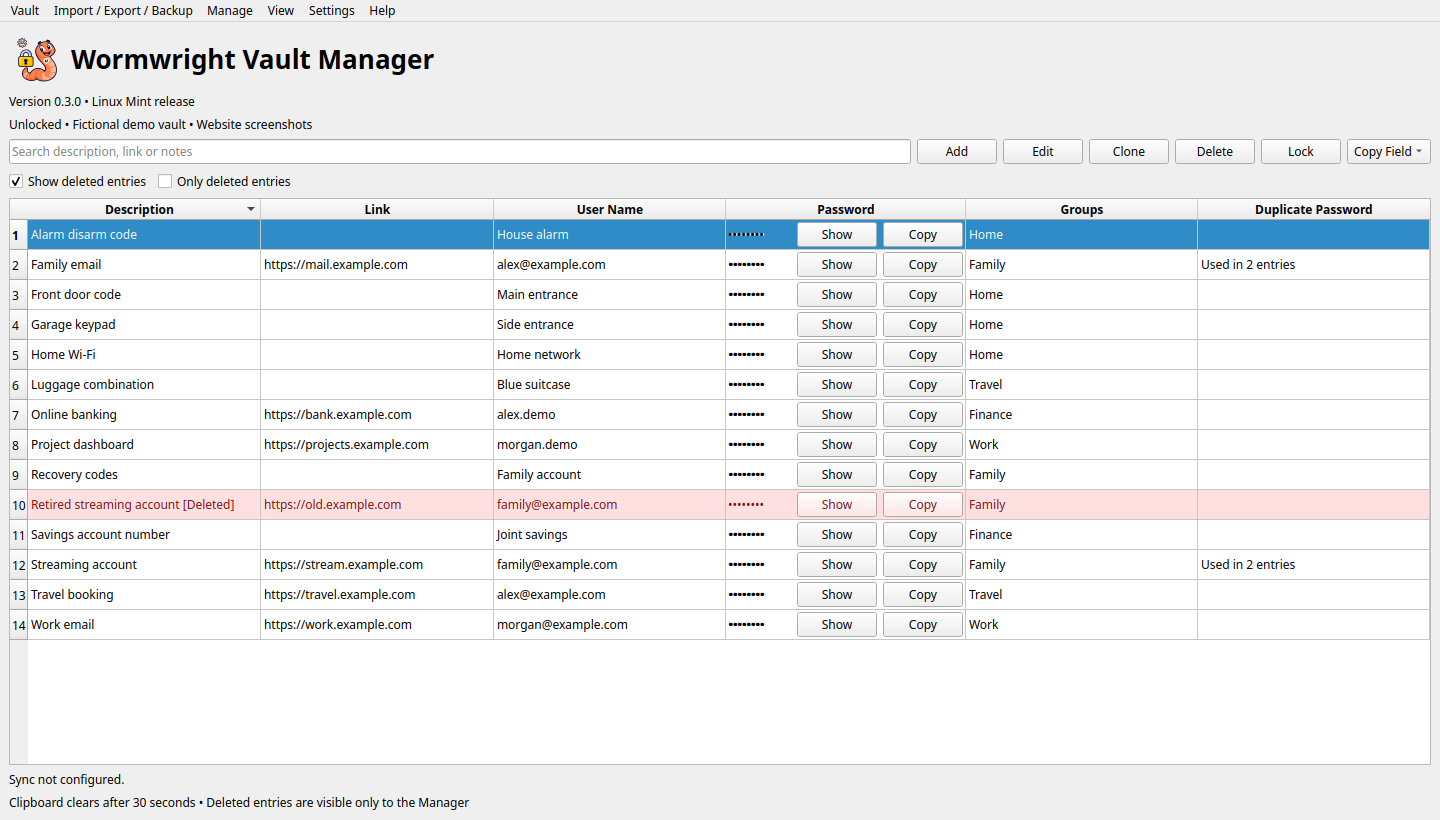
Vault Manager
The Manager shows entries across Family, Finance, Home, Work and Travel groups, including a deleted record highlighted for recovery.
View full-size screenshot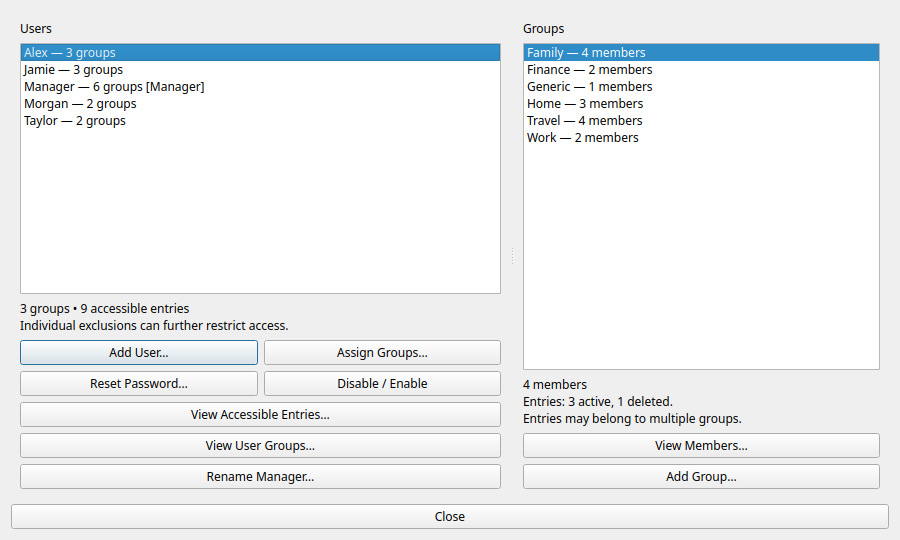
Users and groups
Four demo users belong to different groups. Select a user or group to review memberships, accessible entries and sharing controls.
View full-size screenshotExplore the features
Your passwords. Your devices. Your shared folder.
Wormwright Vault is a desktop password manager for people who want to keep an encrypted vault on their own computers and share updates through a network folder they control. Use it for yourself across several devices, or share selected entries with family members and a small team through the optional Wormwright Vault Manager.
More than website passwords
Useful secrets do not always belong to a website. Wormwright Vault can keep a locker combination, a bank account number, a house-alarm disarm code, a smart-lock access code, a PIN or a recovery code alongside your online account passwords. Give each entry a clear description, store the sensitive value in its encrypted password field, and use encrypted notes for context. A website link is optional.
Its standalone interface helps you find and use that information wherever you need it: at a door, on another computer or while traveling. You can copy a value without displaying it, or open the large display for easy reading. The same group permissions, exclusions and locking controls apply to these entries. This broader storage workflow is a key focus, although other password managers may also support non-website information.
Simple for one person. Flexible for several.
One person needs only the basic Vault app, whether using one computer or several. Multiple devices do not require multiple accounts or the Manager app. The everyday interface offers search, editing, random password generation, duplicate-password indicators, copy controls and a large password display for easy reading.
For a shared multi-user vault, Vault Manager is available on Linux and Windows. It creates separate accounts, assigns users and entries to one or more groups, and excludes individual entries when necessary. Ordinary users can create, edit and soft-delete entries they are permitted to access. Restricted entries stay hidden. The Manager can review deleted entries, restore them, permanently remove records, reset credentials and disable accounts.
The two app views can run together using one shared session, so administration and everyday work stay coordinated. Opening the Manager view does not grant administrative rights: the signed-in account determines access.
AI assistance without handing over your passwords
Local integration hooks let a configured assistant start or focus Wormwright Vault and request a lookup, such as “Look up my Gmail password.” If the vault is unlocked, the app searches and selects entries with passwords masked. If it is locked, it presents authentication first and completes the lookup after you unlock.
The lookup interface returns acknowledgments, not passwords, entry contents or match counts. It cannot unlock the vault, reveal passwords or copy them through the hook. You choose when to show or copy a password inside the app. These hooks provide a foundation for future AI integrations; voice recognition and assistant configuration are supplied separately, rather than built into the vault.
A different fit for password management
Wormwright’s focus is a local desktop workflow with a shared folder as the sync meeting point. It is a useful fit when you want your own storage, offline editing and selective sharing without operating a hosted password service. Its distinction is that combination, rather than a claim that it is universally better than other password managers.
A simple single-user interface and optional administration views let you begin with personal use and add controlled multi-user sharing later. Searchable offline Help, an optional disposable demo vault and step-by-step setup guides make it easier to learn and test.
Setup and technical details
Configure NAS sync
Use SMB for NAS sync. FTP-mounted shares have shown intermittent sync failures, including a “file locked” message when no lock was present. SMB resolved that reported failure and is the recommended connection method. If you experience this with an FTP mount, switch to an SMB share and select the same dedicated vault folder.
Mount the shared folder in your file manager, then select the dedicated vault folder in NAS Sync Settings. Each computer needs its own local working copy and a connection to the same shared master. The mount must support writable files, the shared sync lock and replacement operations. SMB is the recommended connection method.
Linux supports adjustable automatic sync while the app is running, including while locked. Username search is included alongside description, website and notes search. Passwords are excluded from search.
Work offline. Reconnect when you are ready.
Each computer keeps a local working vault, so you can look up, add and edit passwords while traveling or away from your home office. When you reconnect to the configured shared folder, the app synchronizes changes with the shared master copy. Compatible mounted SMB or FTP shares can provide that common meeting point. A VPN or Twingate can provide access to your network, provided the computer can reach and mount the share.
Automatic sync has an adjustable interval and supports startup, unlock, entry changes and closing. It can transfer encrypted changes while locked, as long as the app is running. Independent entry edits can merge; competing edits require review. Changes cannot reach an offline device until it reconnects and successfully syncs.
What changed in 0.3.2
Saving unchanged NAS settings now retains the managed sync baseline. If an older version already lost that history, identical encrypted entries are retained automatically, while differences still require review. Back up unsynced edits before resolving those differences; choose Local for changes you intend to retain from that computer and Shared for changes from the NAS.
Protection built into daily use
- Encrypted vault contents: per-entry encryption and user-specific key access protect saved credentials. User and group details and exclusions are encrypted; signed records and policies help detect unauthorized changes. Some routing metadata and file characteristics remain visible.
- Separate account credentials: managed users have their own passwords and optional compatible FIDO2 YubiKey enrollment using PIN and touch, with password fallback.
- Adjustable automatic locking: an inactivity timeout locks the session. Unlimited is available with a warning; both app views lock together.
- Less on-screen exposure: passwords remain masked until requested. Copy a password without displaying it; the app clears its clipboard value after 30 seconds and on locking. External clipboard history tools may retain it.
- Controlled exports: CSV export requires reauthentication. CSV files are unencrypted. Manager-only Export Database instead creates a consistent encrypted copy for a new device or a lost-file replacement.
- Emergency Lockdown: the Manager can disable all ordinary accounts while retaining administrative access and attempt immediate publication to the shared master. Other devices lose access after successfully downloading that update.
- Recovery and review: encrypted backups, configurable automatic sync backup retention, soft deletion and explicit conflict resolution support recovery without silently discarding competing edits.
What it is—and what it is not
Wormwright Vault is intended for personal, family and small-team desktop use with local working copies and a mounted shared folder. It does not currently provide HTTP/HTTPS vault syncing or a hosted web service. Remote access through a VPN still uses the shared-folder workflow. FTP itself does not provide transport encryption; choose a protected connection appropriate to your network.
It is not currently a browser autofill extension or an enterprise identity-management service. The current release supports Linux Mint 22.x on Intel/AMD 64-bit computers (amd64), with glibc 2.39 or newer. Cinnamon and XFCE are the intended desktop environments. Earlier Mint versions, ARM Linux computers, other distributions and macOS are not included in the Mint support claim. Fedora and Windows have separate stable releases. See the Android page for the phone preview.
There are practical limits: the desktop app must run for automatic sync; the share must be mounted, writable and compatible with the required file operations. Permissions changes and lockdown cannot recall passwords already seen, exported or retained in an old offline copy or backup. The Manager can access all entries and has recovery authority. This Linux Mint release has automated checks and user testing; it has not undergone an independent security audit.
Keep control of your storage. Keep working offline. Share only what each person needs.
Support and source code
Report a bug using the GitHub form (account required). Include your app version, operating system, steps and error message. Reports are public: never attach real vaults, passwords, recovery codes, YubiKey PINs or NAS credentials. Remove private details from screenshots.
For a suspected security vulnerability, submit a private security report.
Vault’s application code is open source under GNU GPLv3. You may use, modify and redistribute it under that license. Browse the source code. Third-party components retain their licenses; music, branding and other Wormwright projects are separately covered.
Four named YubiKeys
Mint 0.3.11 supports up to four keys per vault account. Use Add YubiKey and Manage YubiKeys to enroll, name and remove keys. Update every client before adding keys. Older backups and offline copies retain their previous enrollments.